
The migration from the SHA-1 to SHA-2 certificates is the matter of current interest to Internet users. The certificates signed with SHA-1 are considered deprecated and a fair question arises: how can I check the hashing algorithm of my certificate? The ways to check are quite different and we will describe the basic ones.
If the certificate is already installed and working, there are three ways to check the hashing algorithm: in a web browser, in an online checker and in a command line. To check the hashing algorithm of the certificate that is not installed on the server is not a problem as well (refer to section 4).
- The green bar or the padlock
 in the browser address bar bears a lot of information about your certificate. When clicking on it you can find the hashing algorithm among other info. These are the steps to perform in Chrome:
click on the padlock > Connection > Certificate information > Details > Signature Algorithm.The same results are shown in Firefox and Internet Explorer. A click on the Padlock in IE will show the certificate information window with a “View certificates” button.
Just click on it and the same window with a “Details” tab as in Chrome will show up.
A Firefox window with certificate information slightly differs. The following steps are to be made in Firefox:
click on a Padlock or a Green bar >> More information >> View certificate >> Details >> Certificate Signature Algorithm.
- Quite easy and user friendly checker. All you need to do is enter your domain name and click GO. If the certificate is in SHA-2, the checker will show “Nice.”.

SHA-1 certificates test results in the “Dang. Domain is using SHA-1” message.

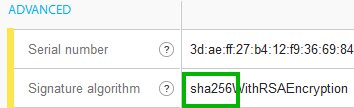
- Also the hashing algorithm of the certificate is displayed by the online SSL Checker. Type in the domain name in the checker and run a test, scroll the page to the bottom and in the Advanced section check Signature algorithm.
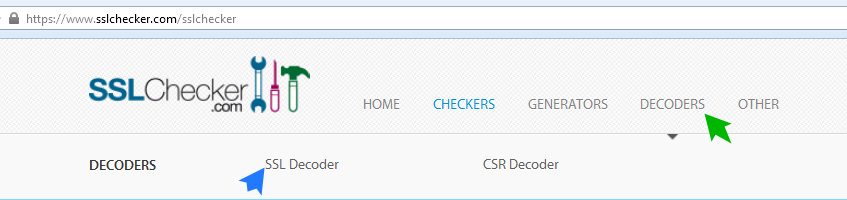
- Besides, you can check the hashing algorithm of the certificate by decoding it; when the certificate is not yet installed on the server, it can be rather handy. In the SSL Checker there is a ‘Decoders’ section, click on it and select SSL Decoder.
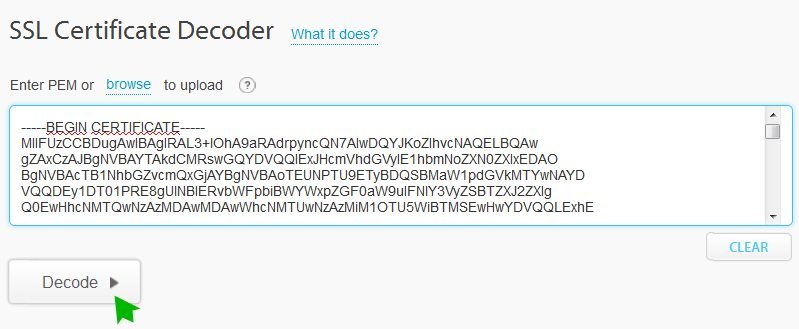
Insert the SSL certificate or browse it as a file into the Certificate box and run a test.
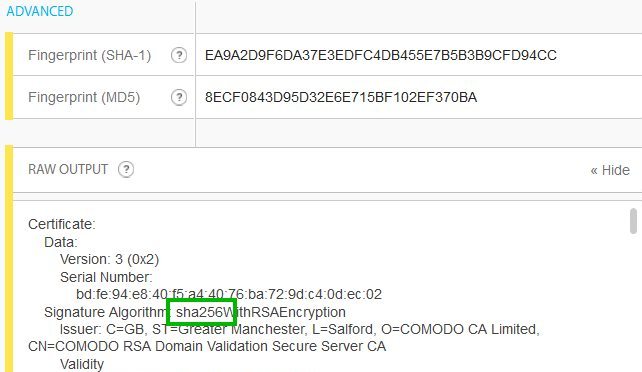
On the bottom of the page click on ‘Raw Output’, the drop-down menu with the certificate information indicates the Signature algorithm of the certificate along with other information.
- There is a convenient decision for OpenSSL users as well. OpenSSL is a good option to learn all about the certificate on your server and it does not require the site to be published unlike the web browser.
The command to check the hash function used in the certificate signature:
openssl x509 -noout -text -in example.crt
where example.crt is your certificate’s filename. The output shows the Signature Algorithm of the certificate in the Data section.

Also, to extract only the hashing algorithm this command can be used:
openssl x509 -noout -text -in example.crt | grep "Signature Algorithm" | uniq
The output is short and clear:

